Posts

Hey there! We're hosting a Contest. Winners will be featured in the next blog post.

Learn More

How to get Nfinetech Web App + Intro to new features!

Image
Yes, Nfinetech is now a Web App! To get it, you don't need to go to Play Store or sacrifice a lot of storage. You can do it RIGHT NOW ! We also have a lot of new features! Let's get started! Nfinetech PWA Installation of WebApp: For Android For PC New Features: Social Media share buttons Emoji reaction buttons On Android Chrome: Press the three-dots menu button Tap the "Add to Home Screen" option Tap the "Add" button Done! No hassle installation! On PC Chrome: Watch this quick 40-second video: New Features: Social Media share buttons: Now, you can quickly share any post from Nfinetech by using the share buttons below each post. If you use a PC, you can also see some sticky share buttons on the left side of the screen. Emoji Reaction buttons: You can also quickly share your reactions by clicking on one of the emoji buttons below each post. It is easy and requires no verification/captcha. Just tap to go!

Check out this super-thin mobile workstation from Dell

Image
Dell Technologies on Wednesday launched a new Precision 5550 mobile workstation in India at a starting price of Rs 1,29,999. The new 15-inch machine features four-sided InfinityEdge display, advanced thermal innovations and latest 10th Gen Intel Core Processors in a thin and light frame. Weighing 1.84 kg with a 92 per cent display/body ratio and up to NVIDIA Quadro T2000 (4GB) graphics, the Precision 5550 workstation can handle applications for 3D design and modeling, simulation and analysis and rendering with ease, the company said in a statement. 'From fast rendering to detailed visualizations and complex simulations, the Precision 5550 is a perfect combination of power and style, with the latest hardware and software components, thermal innovations and intelligent features, creative users across industries will appreciate this workstation,' said Vivekanand Manjeri, Brand Director, Client Solutions Group, Dell Technologies India. The mobile workstation comes with De...

News: Will this chip from Qualcomm power your next Smartwatch?

Image
Global chipmaker Qualcomm on Wednesday announced its latest Snapdragon Wear 4100 platforms including Snapdragon Wear 4100+ as well as Wear 4100 for the next-gen smartwatches based on Google Wear OS and Android Open Source Platform (AOSP). With the Wear 4100 platform, Qualcomm has promised lofty improvements in performance-related aspects as well as improvements in battery efficiency. According to Qualcomm, the new wearables platform boasts of up to 85 percent faster performance and up to 25 percent lesser power consumption, compared to the earlier Snapdragon Wear 3100 platform. The new chipsets are built on a dramatically smaller process, now 12nm, with modern Cortex-A53 processor cores, and in the case of the 4100+ there is a new low-power coprocessor that can take even more load off of the main processor. Qualcomm has announced a partnership with two companies to launch the first smartwatches with Snapdragon Wear 4100. The first wearable will be Mobvoi Tic Pro Next Gen, usi...

What is “Root” in Android?

Image
Android Rooting If you are interested in Android, you must have come across the term “Root” atleast once. If you ever wondered what it is, then you are at the right place. You should know that Android is based off Linux. And if you are familiar with Linux, then you should know about “Root Permissions”. Or, you would have seen “Administrative Privileges” in Windows. “Rooting gives you complete control over the device you are using .” Android is a pretty locked-down system (though not as tight as iOS). You can’t change the basic UI i.e. making your ASUS look like a Huawei (except without launchers). You also can’t uninstall some apps placed in by your manufacturer by default. To do these things, you need to “Root” your device. Rooting gives you complete control over your device. By rooting your device, you can do anything.   You can even uninstall and reinstall Android on your device. So, what is Root? Here comes the complicated part. Whenever you boot i...

Your passwords are not safe enough!

Image
Image credit: Shutterstock Please read  this article on password storage before proceeding. Your passwords aren’t as safe as you thought they would be… “But wait, you mean anyone can crack my passwords?” Well, yes and no. It all depends upon you. If you have made the password good enough, it will not be easy to crack it.  If your password is something like your date of birth, your phone number, or something else like 1234 or qwerty or the ever famous “password”, then STOP reading this article, go back and CHANGE your password to something stronger RIGHT NOW. Who knows, maybe someone is in the process of cracking your password right this instant…… What makes a good, strong password? A strong password is one with atleast 6 letters, 2 numbers and one symbol, adding up to a minimum of 10 characters.  How are passwords cracked? Password cracking can be divided basically into 2 categories: 1.     General Methods. 2.   ...

Passwords-How do they work on websites?

Image
We are all familiar with passwords. We have to use them at least once if we have to live in this century.   We rely on passwords to protect a lot of things from social media accounts to bank accounts. Therefore it is necessary to know how this security system works. How (and where) are passwords stored? Perhaps one of the most widely asked questions of all time. Imagine a Social Media website like Facebook. If they stored the passwords in, suppose, a text file on the server (or database), a hacker can easily steal it if they get access to the server/database. So, what do they do? They usually code the passwords in a crypt called a “HASH”. Even if you managed to find the Hash-ed password from the database, you cannot decode it to obtain the password, because Hashes are one-way only. Then how do the websites know whether you typed the right password?   When you enter the password, the site converts it back to the hashed form. Then it compares this hash ...

What is Hacking ?

Image
          I have been planning to blog on this topic since I saw a movie in which a Hacker hacks a computer for stealing information. Speaking of which, many of you would have seen something like this in a movie:           The Hacker, alone, in a place completely isolated from it’s surroundings. He sits in front of a huge computer screen which is the only source of light in the dark room and starts typing furiously. A hundred windows keep opening and closing. The Hacker mutters something in an indecipherable language under his breath. Suddenly, a window pops open, saying “HACKING…”, the status bar starts ascending from 0%. The Hacker catches his breath. The status bar reaches 100%. It says “ACCESS GRANTED”. The Hacker stands up and cheers. What you have witnessed is a drama called “HOLLYWOOD HACKING”. This is far from the truth. What is Hacking? Actually, a “Hack” is a crea...

Installing KolibriOS into a USB flash Drive (feat. Rufus)

Image
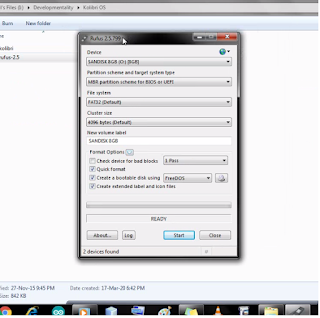
Rufus  This blog will show you how to install KolibriOS into a USB pen drive. Items Required: -An empty USB pen drive (completely blank) -KolibriOS ISO file (available here , download the LiveCD image version)( Learn more about KolibriOS ) -Rufus (available here , download the portable version) -A computer/laptop -Patience and basic computer skills Also, just go through my blog on KolibriOS  here . Watch the video for the installation process: Now, after installing, turn off your pc/laptop, plug in the pen drive, turn it on and press F12 repeatedly. This should get into the BIOS of your computer.(if it didn't, just Google how to get into the BIOS on your computer). Don't freak out, select your USB with the arrow keys and press enter. Now you should see a blue screen, with some options. Just press Enter. Ta-Da! You have successfully booted into KolibriOS!!! If you aren't able to get this done, just post a comment, or e-mail me  here That's all. Best o...

An Operating System under 30mb! (feat. KolibriOS)

Image
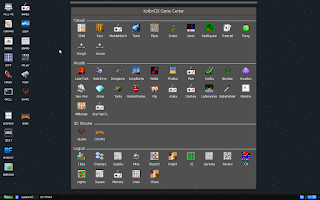
Customized KolibriOS desktop with dark theme and Game Center open Yes! This   Operating System is available for download in just under 30 megabytes! (For those who don’t know what an Operating System (OS) is, it is a piece of software that connects you to the computer. Examples are Android, iOS, Windows, macOS, Linux, etc. More info on Operating Systems here ) KolibriOS Desktop I actually wanted a portable OS (an OS which can be stored on a pen drive or CD and boot on just about any computer.) for my old Dell laptop from 2005. It had a Hard Disk which ceased to work, but otherwise in pristine condition. I looked about and finally stumbled upon KolibriOS. This OS is impressive! For under 30mb, you get a ton of apps, 30+ games (including the classic Quake and Doom) and a bunch of themes.   KolibriOS playing QUAKE KolibriOS Game Center   Best of all, it NEVER lags! I usually use it on the aforementioned Dell Inspiron 1300, and it never la...

(Video Tutorial) How to center icons in Windows 7 Taskbar

Image
Welcome to my blog! In this blog I will show you how to center icons in Windows 7 taskbar for that macOS-y Dock-ish look.   (This might work with Windows 8, but I’m not sure about Windows 10, just give it a try and comment whether it works or not.) This is our final look-         It is very easy and can be done without any additional software or expertise. So, let’s get started… (A more detailed tutorial can be seen here )

Share This !

Popular posts from this blog

Installing KolibriOS into a USB flash Drive (feat. Rufus)

How to center icons in Windows 7 Taskbar